 Anvil Tools
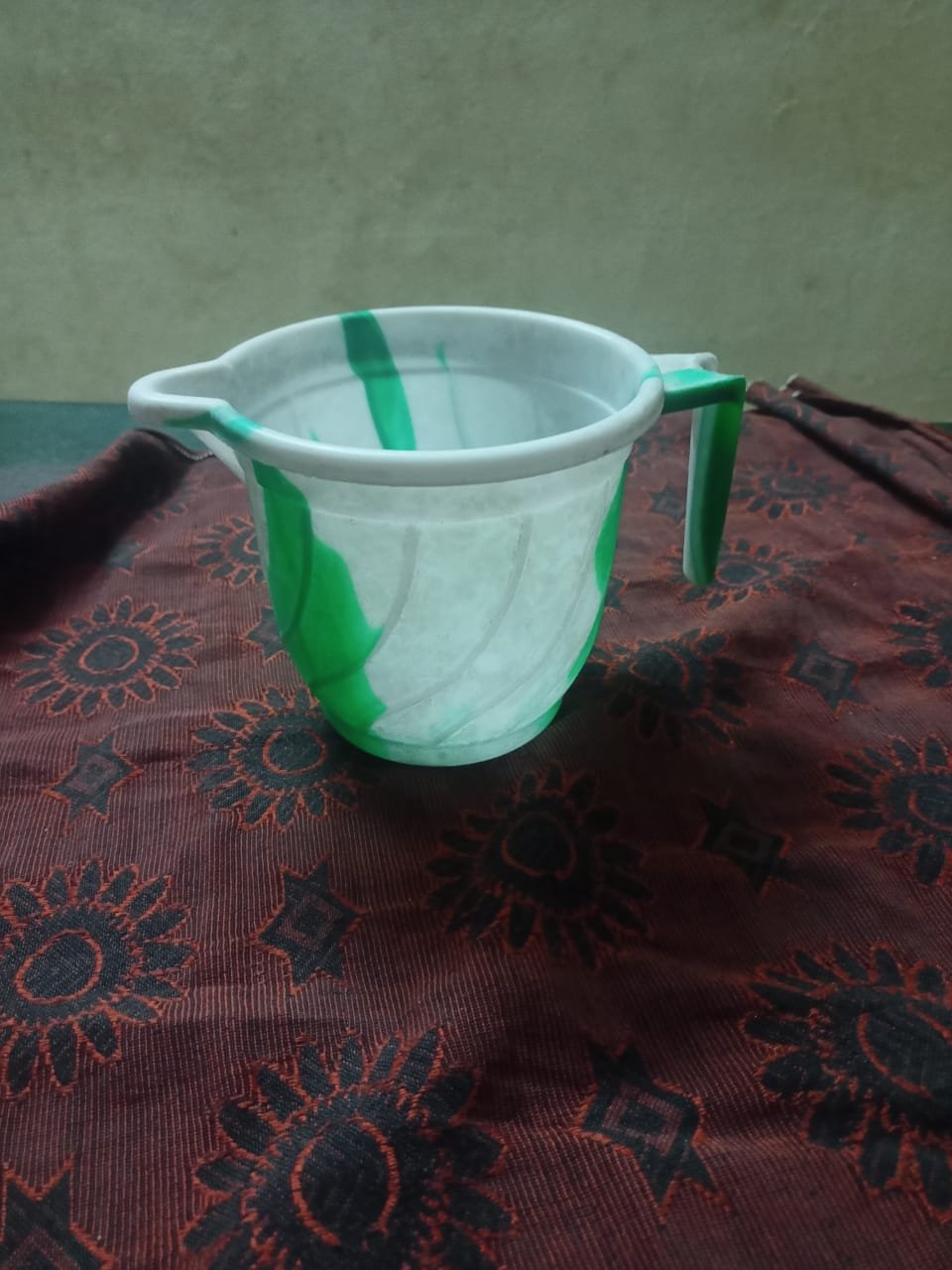
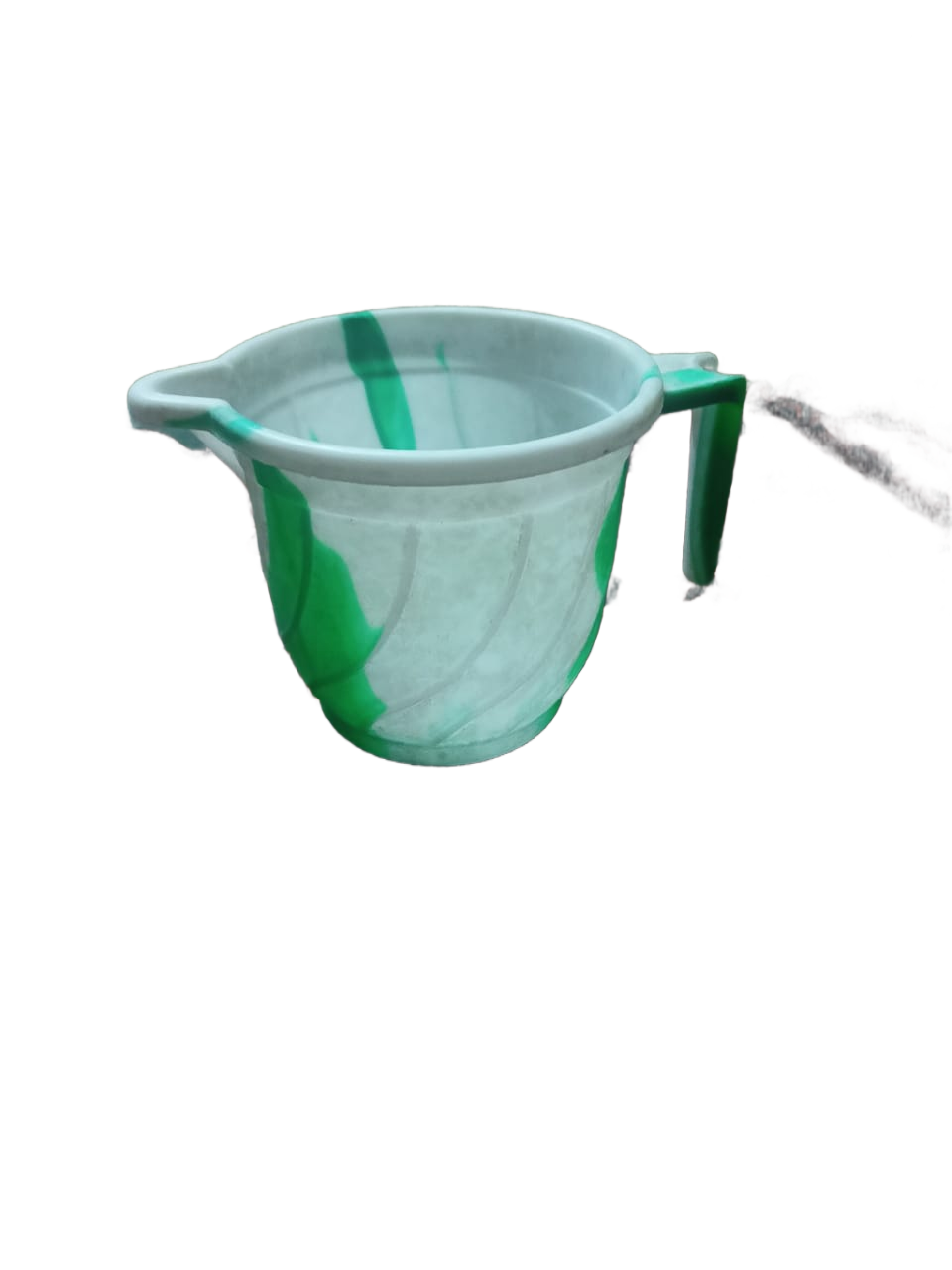


Image to PDF Converter
Turn JPG, PNG, or WebP images into ordered pages in one downloadable PDF.
Open tool →Drop in a photo and this tool cuts the subject out from its background automatically, using a small machine-learning model that runs entirely on your device. The image is never uploaded anywhere, which makes this suitable for photos you'd rather not send to a third-party server.
The first use downloads about 52 MB once, then your browser can reuse it.
The recorded 480 × 360 synthetic mug output retains large beige areas above the rim and around the handle, together with smaller edge remnants. Transparent pixels do not make it a clean cutout. Inspect the complete result; use a manual editor or another source if fragments remain.
| Input or check | Expected result or decision |
|---|---|
| Source | A solid mug against a pale illustrated background. |
| Result | Some pixels become transparent, but substantial background areas remain. The recorded result needs manual cleanup. |
| Decision | Check on light and dark backgrounds; use a manual editor if the retained pixels matter. |
Download the licensed photograph · Inspect its actual model output · Photograph source and CC0 license

Download the test input · Inspect the transparent PNG result
Use a sharp photograph with a clearly separated subject. Fine hair, transparent objects and shadows can be difficult. The first run downloads a model; later runs can reuse browser-cached model files.
The first run downloads model assets and can take longer. A smaller source image can help on devices with limited memory.
These tools open separately; inputs are not transferred.
Turn JPG, PNG, or WebP images into ordered pages in one downloadable PDF.
Open tool →Generate a five-color palette for design work, with the option to lock colors you like.
Open tool →Turn any link or short message into a scannable QR code you can download as an image.
Open tool →Convert text to Base64 and back, entirely in your browser.
Open tool →The selected image is processed in your browser. Anvil Tools does not upload it to a conversion server; the page loads the removal model and code needed to perform the local calculation.
Automatic segmentation can miss hair, glass, shadows, fine edges, or low-contrast subjects. Large images can use significant device memory, and the result should be inspected before reuse.
No. Processing happens locally using your device's own processing power, so the image never leaves your browser.
The first run downloads and initializes the small ML model used for segmentation. After that, it stays cached for the rest of your visit.
JPG, PNG, and WebP work well. Very large images may take longer to process on slower devices.
Automatic segmentation works best with a clear subject and reasonable contrast against the background. Busy backgrounds or fine detail like loose hair can produce a less clean edge.
Allow the model resources to finish loading and keep the tab open during processing. If the browser runs out of memory, retry with a smaller supported image and fewer open tabs. For missed hair, glass, or thin edges, improve the source photo or use an editor with manual selection.
The browser loads the image-processing model and runtime before it can remove a background. Wait for the status message and keep the tab open. A smaller image can help a device with limited memory.
No. Hair, glass, shadows, and a subject that blends into the background can produce rough edges. Inspect the transparent output at full size and retain the original for manual corrections.
Why Images Look Blurry on Websites: Resolution, Retina Screens, and Responsive Images
Images look blurry after upload? Learn how resolution, CSS scaling, Retina displays, compression, and responsive images affect sharpness and how to fix it.
Why Your Image Colors Change After Export: sRGB, Display P3, and Color Profiles
Why do image colors change after export? Learn how sRGB, Display P3, ICC profiles, browsers, and screen settings affect colors and how to fix differences.
What Your Photos Reveal: EXIF Metadata, GPS Location, and Privacy After Editing
Discover what EXIF photo metadata can reveal, including GPS, timestamps and camera details. Learn what editing changes and how to check images before sharing.
Background Removal for Design and Product Photography
Prepare natural cutouts, inspect difficult edges, preserve product details, and export images for websites, design projects, and marketplace listings.